

Setting up aiProfile: Applications
Application Creation
People apply at a Location to create a Registration.
Location may or may not be available to register with.
Locations can be a Physical Location, like your Base or a School or Ministry within your Base.
A Location can be a program you are running, like a UDTS, Youth Group, Church, or School Sponsorship.
A Location is also a container for your current staff, staff applications and staff development.
- Your Base Location (type Base)
- Base Discipleship Training Schools (type DTS)
- An Actual DTS you are running, 01-01-2026 (type DTS)
- Base Upper Schools (type Upper School)
- (SOW) School of Worship, October 06, 2026 (type Upper School)
- (WBH) Word by Heart, March 06, 2027 (type Upper School)
- Base Staff (type Staffing)
- Existing Staff 2026 (type Staffing)
- Base Discipleship Training Schools (type DTS)
The Location
aiProfile -> Admin -> Locations (Choose one or Create a new One)
Once created, Edit, or if it exists, also click Edit.
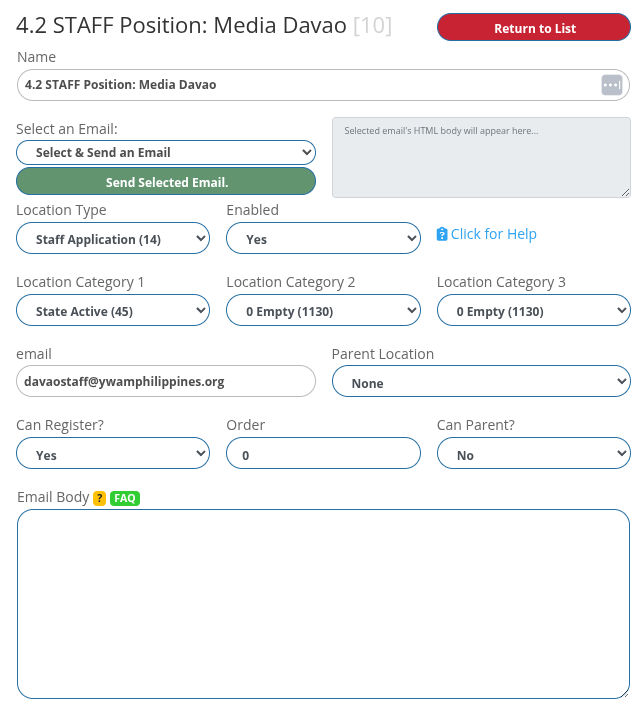
- The name is meaningful, making it easy for people to find and apply for. The number 4.2 is a convenience for you as an administrator.
- Enabled is Yes, so it will appear in registrations and administration.
- Location Type is important, and generally, you would only use Staff Application, DTS, or Upper School.
- Category Type (1,2,3) is less important and is there to be helpful to you when you want to find things.
- This Location is set to "Can register?" Yes
- The email address is the address that will receive notifications when someone has applied for this (location) application.
- Generally, there should be a parent. A DTS school must be affiliated with the DTS management location.
- Its Order is 0, and it will appear first with the other 0 Registration Locations.
- Generally, a location that can receive Registrations will not be a Parent.
- Email Body, whatever you put in here will be included in the email sent to the person applying.
The Registration
aiProfile -> Admin -> Locations (Choose one or Create a new One)
We will continue with the Registration portion of a Location.
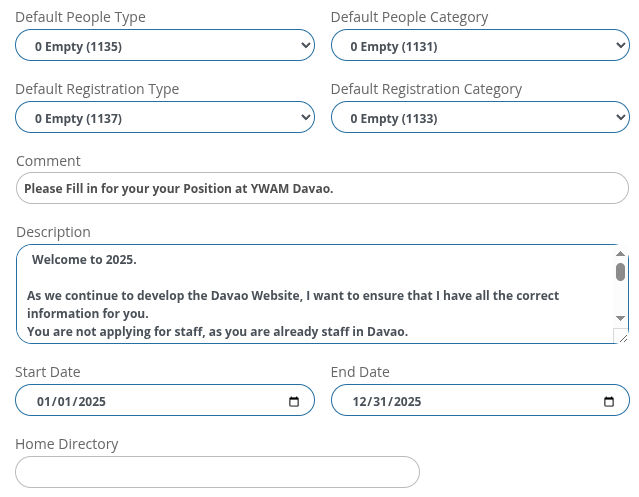
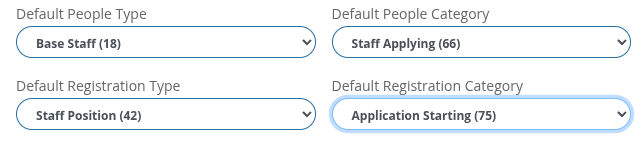
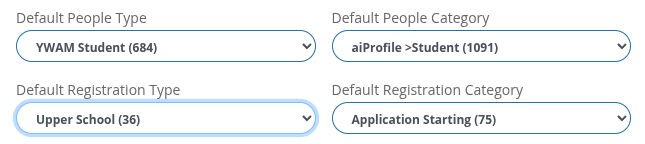
- The default People Type and Category will be applied to a new person registering.
- The default Registration Type and Category will be applied to the registration.
- Staff Set up as Base Staff & Staff Position, the Categories are not so important.
- DTSs Set Up as YWAM Student & DTS, the Categories are not so important.
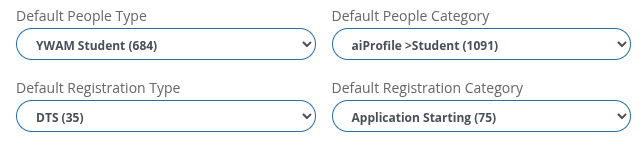
- Upper Schools Set Up as YWAM Student & DTS, the Categories are not so important.
- The Comment field is just a handy space for you to use however you like.
- Description will appear on the registration page for this Location / School / Opportunity.
- Start Date and End Date appear on the registration page for this Location / School / Opportunity.
- Home Directory is not used by you and may be overwritten automatically.
Application Creation
Applications / REgistrations
Staff / Students / Seminars / Sponsors / and more.
- Before people can register for a school or as staff, there needs to be a list of questions they need to answer.
- Questions may be valid for a number of different registration types, like:
Contact Phone Number
Age
Marital Status - There may be specific questions that will only apply to this kind of application.
Where did you do your DTS - Y