
aiProfile and Locations / Bases / Schools
WordPress plugin to manage your YWAM Locations.
What is a Location?
A Location may be a YWAM Base, a school at a Base, a Minister, an outreach opportunity, and much more.
When aiProfile is first installed, you will want to disable several Location options.
Now, let's start with the first thing you will want to do.
Your Location (Base/Campus).
Your Schools: (DTS/Upper Schools)

Setting up your Location
A location is your base, a school, a ministry, an outreach.
Think of a location as being something that People belong to.
SETTING UP LOCATIONS

Create your Location
For this example, we will be looking at creating a DTS for prospective students to register for.
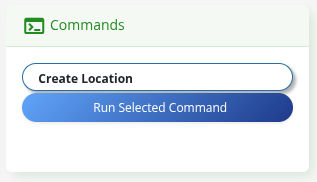
- Having navigated to Admin Tools -> Locations.
- Click Run Selected Command, as this will automatically start the process of setting up a new Location.
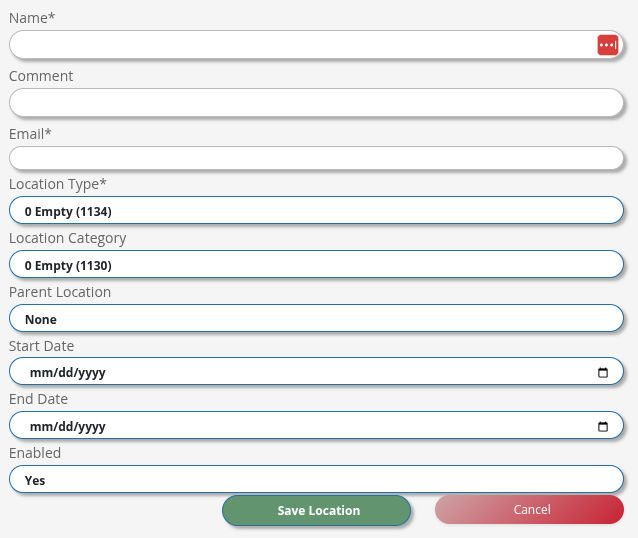
Once you have answered the starting questions, we are ready to save the location. Click Save Location.
Complete your Location
Having saved this new location, you will now see it in the Location List.

Click on the Edit Button to enter this Location.
We start with The Name of your Location.
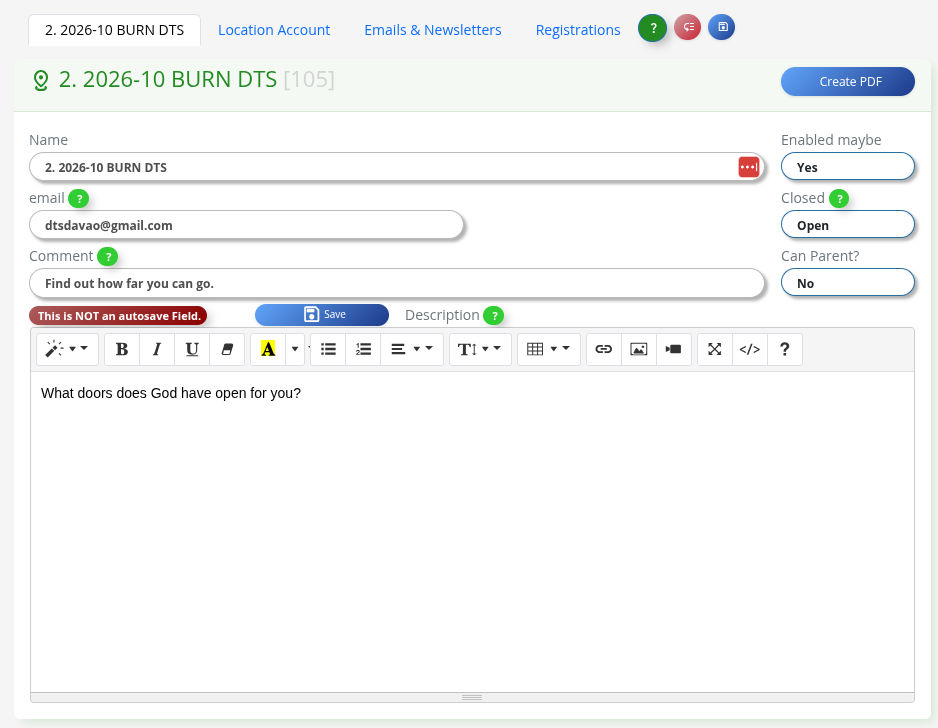
- Change the Name, if needed.
- Make sure the email address is associated with the Leader of the School, and they are present under People.
- Keep enabled to Yes.
- Change Open to Closed.
Every time you edit a field, click in the white empty space near the field, and the system will auto-update your record. You will see it flash green. - Can Parent, stays No. This would be a Yes for things like your Base Record.
- Comment can be anything.
- Description is used in a number of public-facing areas. So make it useful and meaningful.
Location Account
This name may change, but it is second tab in at the top.
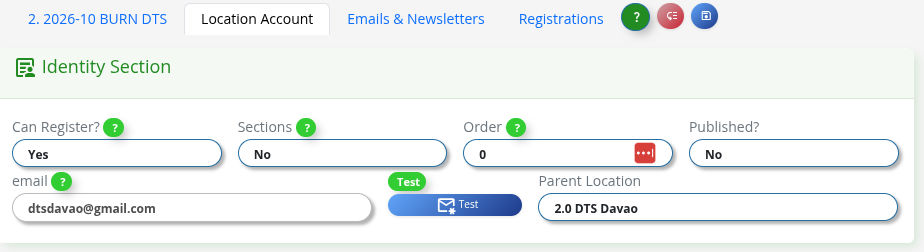
- Can Register is YES if this is a Location/School where people will register.
- Sections can stay as No, it would be Yes if you want to vet people before they do a full Application.
- Order is the Order that this Registration will appear on the Registration page. Generally, we may see DTSs appear first, so set it to 0 or 1.
- Published to Yes.
- For convenience, we have the EMail address in two locations. Make sure it is the address of a person who is the School Leader, and that they have a People Record.
- When someone applies to a school, their emails will be sent with the Reply-To set to this email address.
- You can enter more than one email address here, and the other people will only receive notifications for any registration processes.
- You can click the Test Button, and the email that would go to a student registering will be sent to the email in the email field.
- The Parent Location would be the Holder of all DTS Schools.
Next
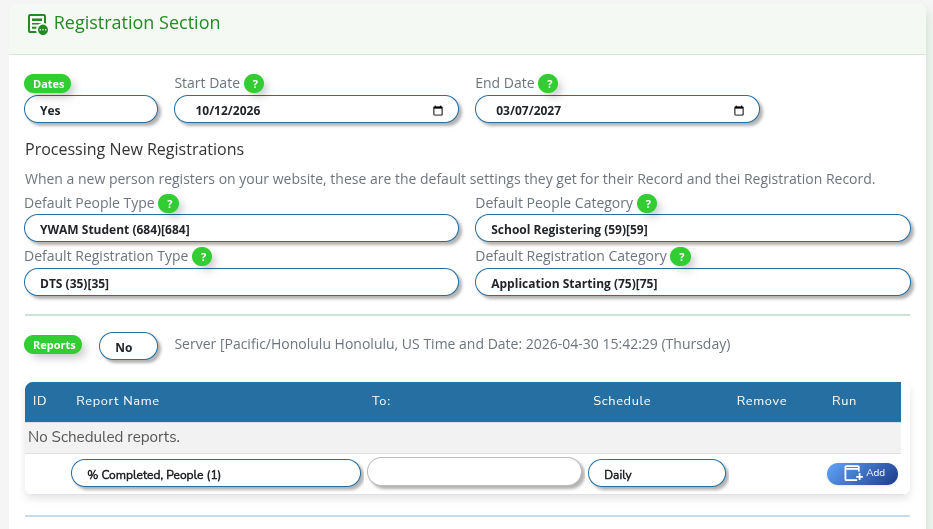
- Date, set to Yes for Locations that are doing registrations.
- Start Date: the start date of this DTS.
- End Date: for the DTS should include Outreach.
- A new person needs to be given:
- Default People Type, in this case, YWAM Student.
- Default People Category: School Registering.
- Default Registration Type: DTS.
- Default Registration Category: Application Starting.
- Reports allow us to send an email to Staff and Leadership reviewing this location.
More on this on the Reports Page.

The Email Body will appear in the registration email to the prospective student.
This is an opportunity to welcome the student and start the onboarding process.
Emails & Newsletters
This name may change, but it is the third tab at the top.

- Within Select an Email & Send, you have a list of preformatted emails, but this feature is much better in People, Registrations, and References.
Next

- Location Newsletter Subscription Information is mostly about assigning a Newsletter to this Location.
- When a person registers for this Location, their registration becomes a subscription to this Newsletter.
- We can cause a Location to be subscribed to a Newsletter, like a DTS is subscribed to an Admin Newsletter, to help the Location's owner (email address) run their Location.
Next
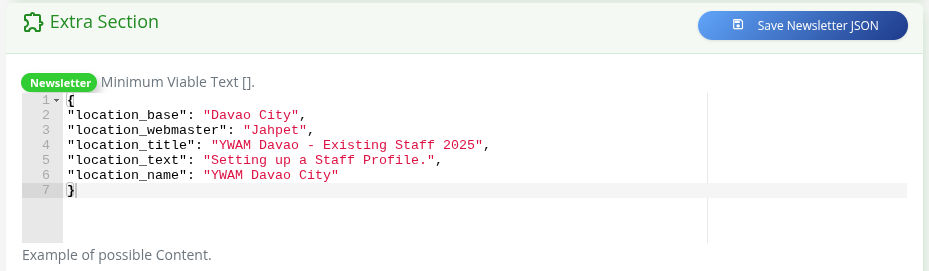
The Extra Section is a programmable area that helps us personalize a Location in the Newsletter Section, Email, and more.
A Location's Records Children & Registrations
Location Child records
This is a set of additional fields that can be assigned to a Location, a Person, a Registration, or a Reference.
In the case of a DTS Location we have a number of Child Records we want to make sure are added.
Child Fields and Registration
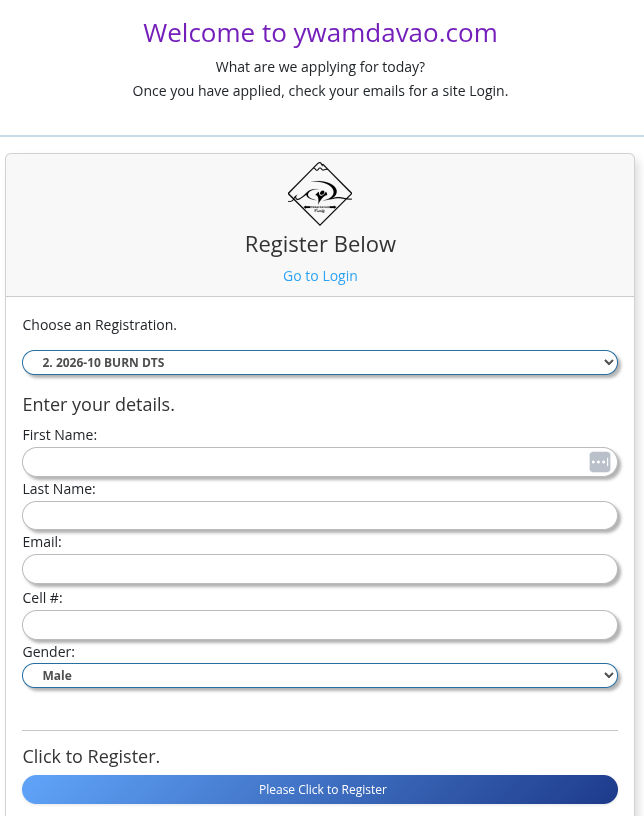
A Location that is a School, or a ministry, or anything that you might receive registrations for has specific Child records that appear on the registration page.
To the left is the start of the registration page.
People Enter their details then they gat an email that givesw them access to Logina nd start an Application.
Apply & Register.

Register
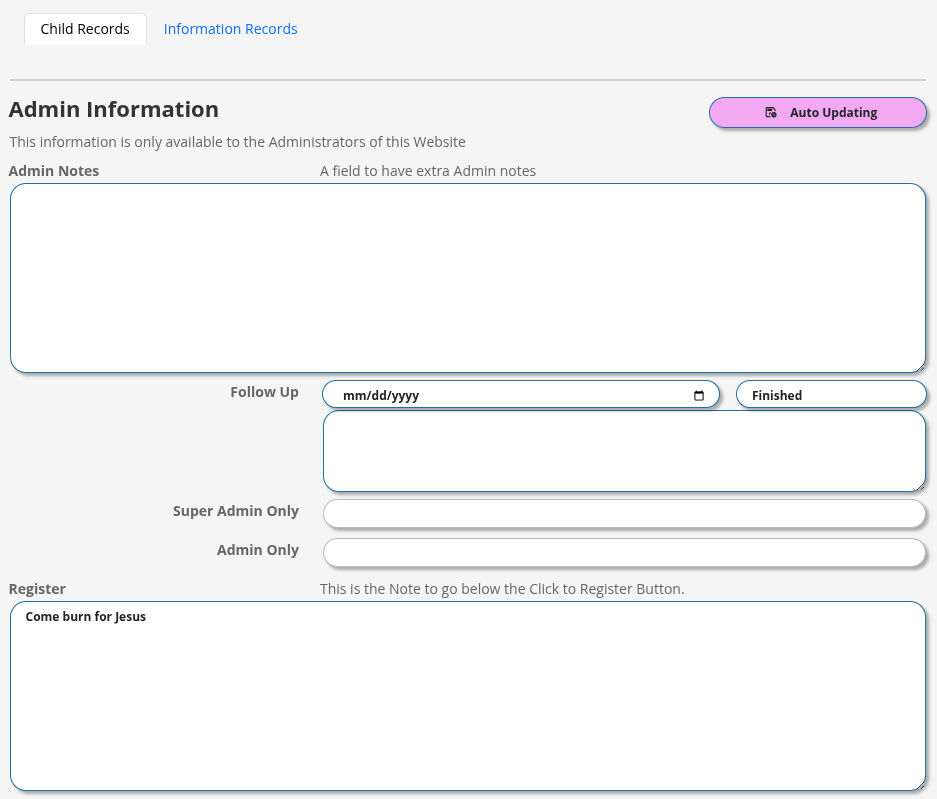
In the Location record, you have the Child Field "Register".
What you put in here appears just below where a respondent registers their application.
Location Name.
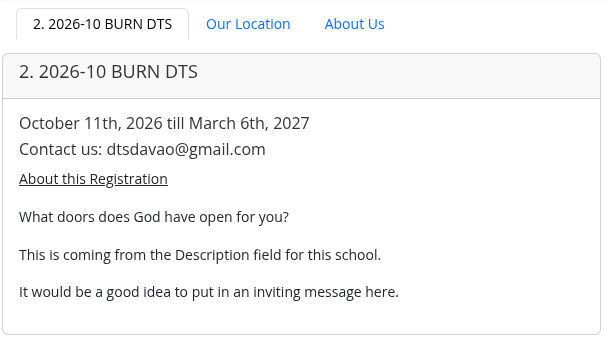
Location Field records
The Dates of the school appear here. This is from the main fields for this location, and can be turned off.
The Email address is also from the main fields of this record.
The About this Registration is from the Descriptions part of the main fields.
Our Location.
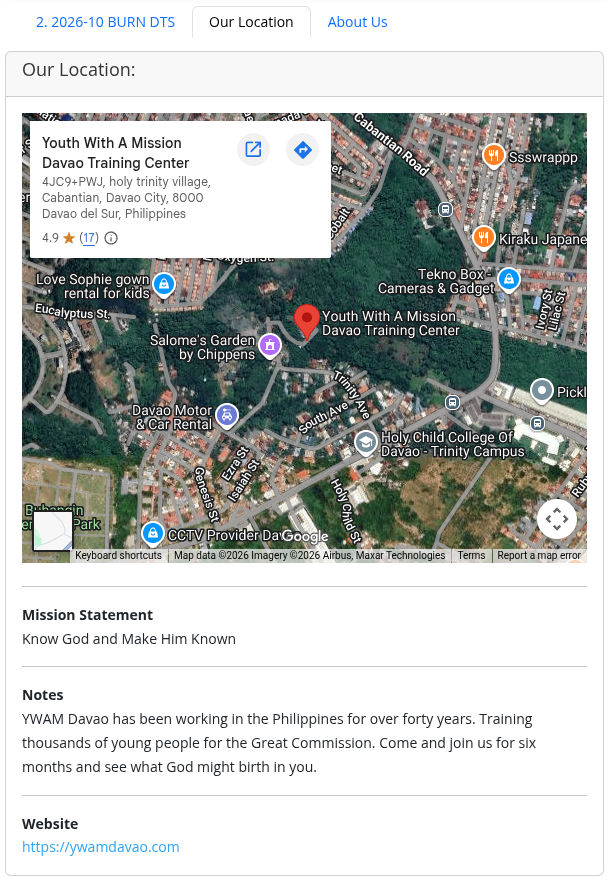
Location Child Our Location
There are several Child Fields to fill out to appear on the Registration, like on the left.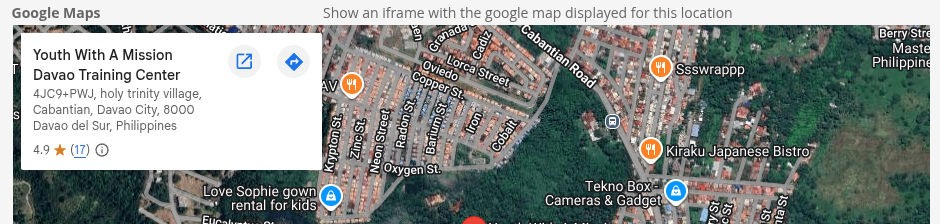



About Us
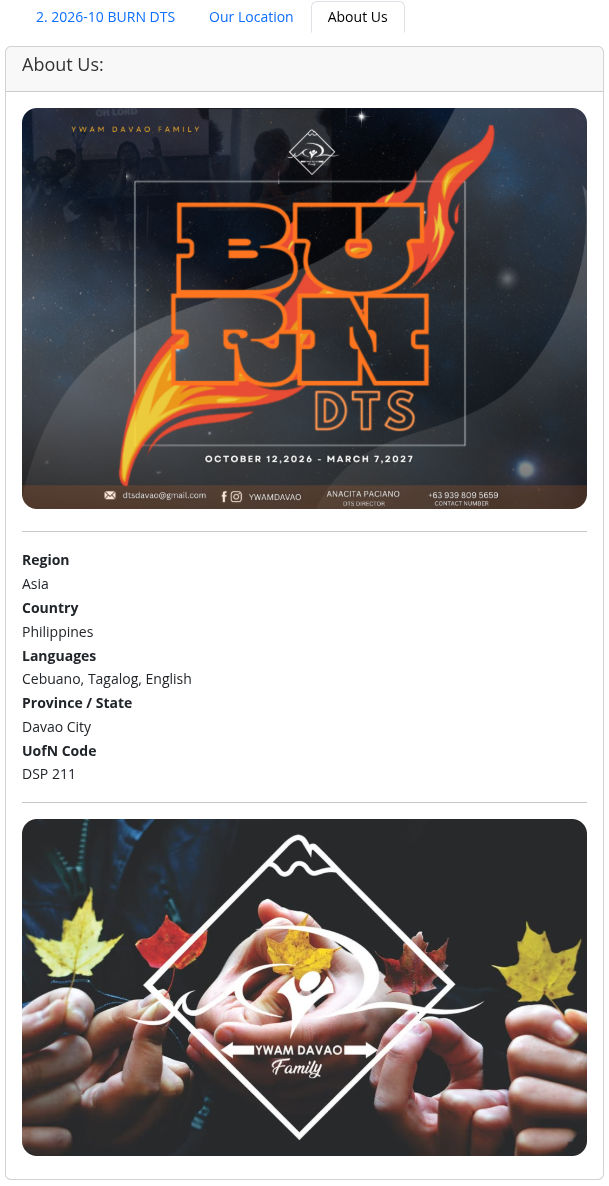
Location Child About Us
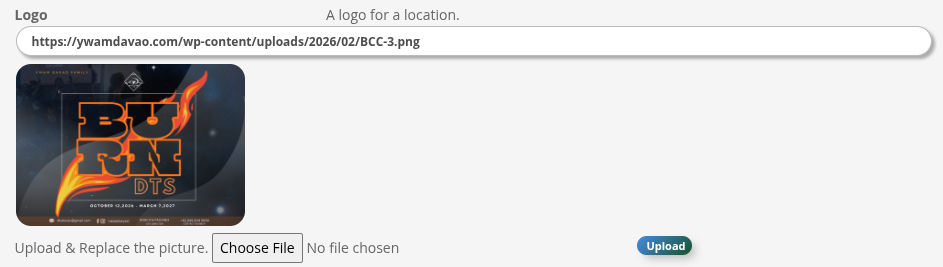
This shows pictures and information about your Location
 .
.
 .
.
 .
.
 .
.
 .
.
Child Feilds and Registration
This is a set of additional fields that can be assigned to a Location, a Person, a Registration, or a Reference.
In the case of a DTS Location we have a number of Child Records we want to make sure are added.
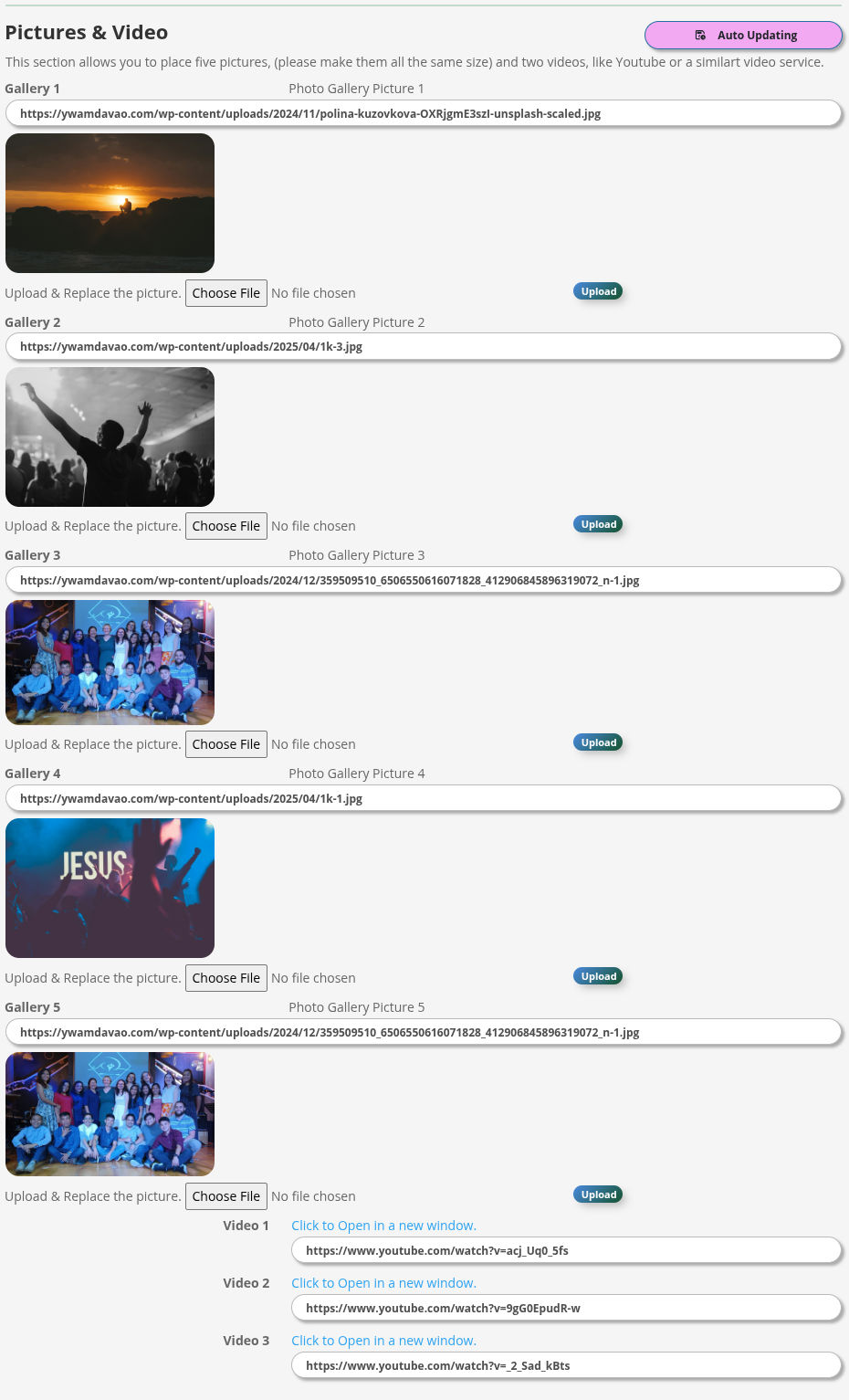
Picture gallery and YouTube Videos
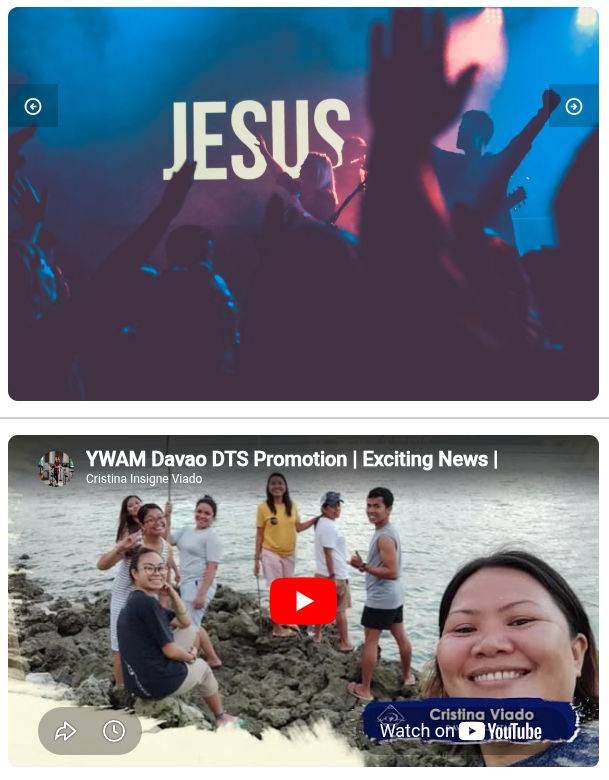
Location Child Galleries and Videos
This is a set of additional fields to display a photo gallery and up to 3 YouTube videos.